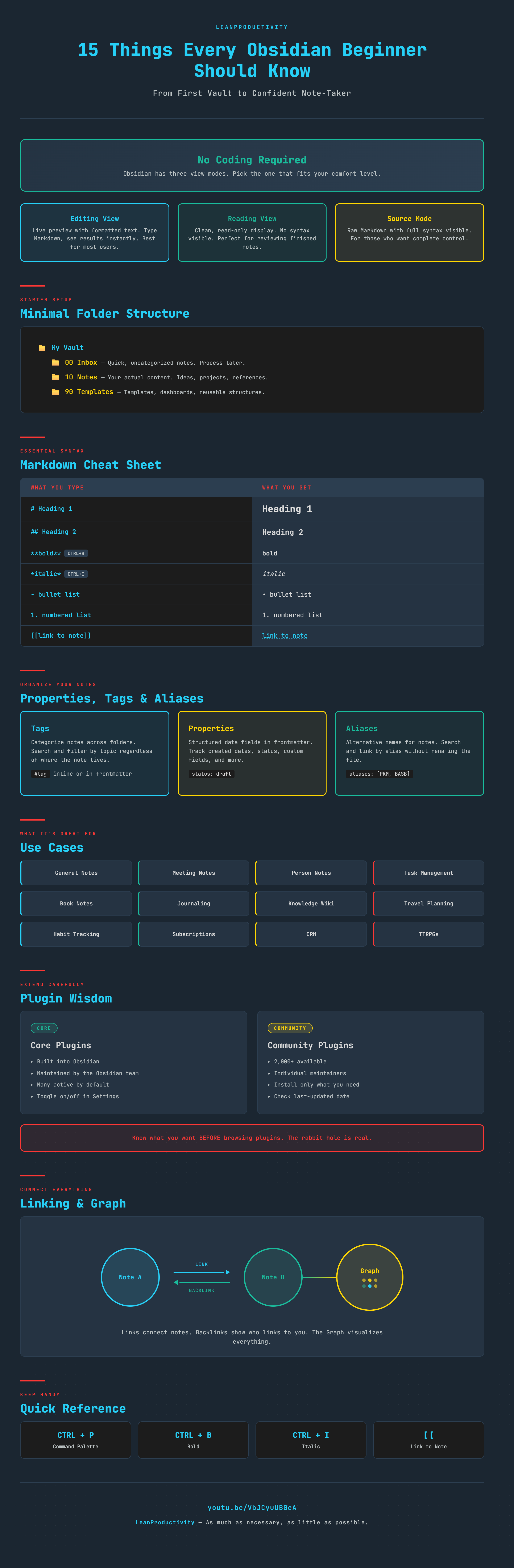
In a Nutshell
Resources
- Tutorial: YouTube
- Download: FREE and paid Obsidian templates
- Discord Community
Starting with Obsidian can feel overwhelming. The flexibility that makes it powerful also makes it confusing at first. This guide answers the questions beginners ask most - from setting up your first vault to understanding plugins, Markdown, linking, and customization.
You do NOT need coding skills. You do not need a complex folder structure. And you do not need dozens of plugins. This post walks you through 15 essential topics with practical demonstrations so you can start taking notes with confidence and grow from there.
Setting Up Your First Vault
Tutorial
Download Obsidian from the official website for your operating system. Once installed, create a new vault - give it a name and choose where to store it. That is all you need to start writing.
A vault is just a folder on your device that holds your notes and Obsidian settings. There is nothing mysterious about it. Every note you create is a plain text file saved directly in that folder.
The User Interface
A fresh Obsidian installation gives you a clean workspace with a few key areas:
- Main area - where your notes live, taking up most of the screen
- Left toolbar - icons for the quick switcher, graph view, canvas, daily note, templates, and command palette
- Left pane - file list showing your vault structure, search, and bookmarks
- Right pane - collapsed by default, used for backlinks and other contextual information
The command palette (CTRL+P) is your best friend. If you ever wonder how to do something in Obsidian, open it and search. Odds are you will find what you need.
Do You Need Coding Skills?
No. Obsidian is for everyone, from non-techies to developers. You can get started and keep going without writing a single line of code.
Three Ways to View Notes
Obsidian offers three views for every note:
- Editing view - the default. Markdown formatting appears while your cursor is on the line, then renders visually when you move away
- Reading view - shows the fully rendered note. You cannot edit in this mode
- Source mode - shows all Markdown code at all times. Despite the name, this has nothing to do with programming
Each view is useful depending on what you are doing. Editing view works for most people most of the time.
Is Your Data Safe and Private?
Yes. Unlike most note-taking apps, Obsidian saves notes as plain text files directly on your device. No data leaves your machine unless you choose to sync it.
You can open any Obsidian note in a regular text editor and see exactly what is stored. What you see in source mode is what the file actually contains. There is no proprietary format, no lock-in, and no cloud dependency.
How Many Vaults Do You Need?
Start with one. It keeps things simple while you learn, and you can always create more later.
Reasons to maintain multiple vaults:
- Separating personal and work notes
- Dedicated vault for a major project like writing a book
Obsidian makes switching between vaults easy. Click your vault name in the bottom-left to see a list of recently opened vaults. You can also create desktop shortcuts to open a specific vault directly using Obsidian URI syntax.
Markdown Basics
Markdown is a simple way to format text. You do NOT need to learn it upfront - the command palette can apply formatting for you. But knowing the basics makes you faster.
Here is what covers 80% of your formatting needs:
| What you want | Markdown | Shortcut |
|---|---|---|
| Heading 1 | # Text | CTRL+P > “heading” |
| Heading 2 | ## Text | CTRL+P > “heading” |
| Bold | **text** | CTRL+B |
| Italic | *text* | CTRL+I |
| Bullet list | - item | CTRL+P > “bullet” |
| Numbered list | 1. item | CTRL+P > “numbered” |
| Link to note | [[note name]] | Two opening square brackets |
That is it. You can learn the rest as you go.
Folder Structure
There is no single correct structure. It depends on your use case. Two things to keep in mind: start simple, and expect it to change over time.
A Minimal Setup
Three folders are enough to get started:
- Inbox (or
00 Inbox) - for quick uncategorized notes you want to process later - Notes (or
10 Notes) - for your actual content - Templates (or
90 Templates) - for things that are not content (templates, dashboards, etc.)
You can number folders to control their sort order. This is purely optional.
Growing Over Time
As your vault grows, you might adopt a system like PARA (Projects, Areas, Resources, Archive) or something custom. The point is: do not over-engineer your structure on day one. A simple setup that you actually use beats an elaborate system that you abandoned after a week.
Properties, Tags, and Aliases
These three features help you describe and organize notes beyond the folder structure.
Tags
Tags categorize notes across folders. A note can only live in one folder, but it can have many tags. Add them inline with #tagname or in the frontmatter:
tags:
  - demo
  - organization
Properties (Frontmatter)
The frontmatter section at the top of a note (between --- fences) stores structured data about the note. Common properties include:
- tags - categorization
- aliases - alternative names for the note
- created / updated - timestamps
- status - custom workflow tracking
Property types include text, list, number, checkbox, date, and date-time.
Aliases
Aliases give a note alternative names. This is useful when you cannot remember a note’s title - search by alias instead. Aliases also work in links: [[Note Title|alias text]] displays the alias while linking to the original note.
Core and Community Plugins
Core Plugins
Obsidian ships with built-in core plugins maintained by the Obsidian team. Many are active by default. Before installing community plugins, understand what the core plugins already offer.
Community Plugins
Over 2,000 community plugins are available. The biggest risk for beginners is falling down the rabbit hole - browsing and installing plugins that look interesting instead of solving a specific problem.
The approach that works:
- Identify what you want to achieve
- Check if a core plugin already does it
- Search for a community plugin only if needed
- Install, enable, and configure it
Two things to keep in mind: community plugins are maintained by individuals for free (no guarantee of longevity), and more plugins means longer Obsidian startup times.
What Can You Use Obsidian For?
Obsidian is flexible enough for many use cases. Here are practical examples where it works well:
- General notes - anything goes
- Meeting notes - structured agendas, participants, action items
- Person notes - tracking interactions and context for contacts
- Task management - tasks anywhere, consolidated views
- Book notes and reviews - key passages, takeaways, ratings
- Journaling - from short log entries to full diaries
- Knowledge management - building a personal wiki with linked notes
- Travel planning - itineraries, bookings, shared info, trip reviews
- Habit tracking - progress visualization, streak tracking
- Subscription management - costs, renewal dates, reminders
- CRM - accounts, contacts, products, leads
- TTRPGs - campaigns, maps, character sheets
Where Obsidian is NOT the best choice:
- Large tables and calculations - use Excel or Google Sheets
- Password management - notes are plain text, not encrypted
- Real-time team collaboration - not built for simultaneous editing (yet)
Ask yourself what you want to do, then decide if Obsidian fits that need.
Templates
You do not strictly need templates, but they save time and create consistency - especially for recurring note types like meeting notes.
Two options for templating:
- Templates (core plugin) - simpler to use, fewer features
- Templater (community plugin) - more powerful, supports rules and automation
Both work by inserting predefined content into new notes. Set up a templates folder, create your template files, and apply them when creating new notes.
Linking Notes
One of Obsidian’s greatest strengths. Type two opening square brackets [[ and start typing a note name or alias. Obsidian suggests matching notes as you type.
Links work in both directions. If Note A links to Note B, then Note B’s backlinks panel shows Note A. This creates a web of connected knowledge without any extra effort.
Backlinks
Open the right-hand pane to see backlinks for the current note. Every note that links to this one appears here automatically. This is one of the most powerful features for discovering connections between your notes.
Graph View
Obsidian visualizes your linked notes as an interactive graph. Two versions:
- Local graph - shows connections for the current note (CTRL+P > “local graph”)
- Global graph - shows all notes and their connections
The local graph is particularly useful for navigating related notes without going through the folder structure.
Searching Your Notes
The Search core plugin lets you find notes by title, content, location, properties, and tags. Combined with good organization (folders, tags, properties), search makes finding any note fast - even in a vault with thousands of notes.
Using Obsidian Across Devices
Multiple options are available, depending on your budget and technical comfort:
| Option | Cost | Complexity | Platforms |
|---|---|---|---|
| Obsidian Sync | $4-8/mo | Low | All (Windows, Mac, Linux, iOS, Android) |
| Syncthing | Free | Medium | All major platforms |
| Other alternatives | Varies | Varies | Depends on solution |
Obsidian Sync is the simplest option - fast, reliable, and works everywhere. Syncthing is a solid free alternative that continuously syncs files between devices, though it requires more setup.
Customizing Obsidian’s Appearance
Themes let you change how Obsidian looks without any technical knowledge. Over 300 community themes are available.
To install a theme: Settings > Appearance > Manage > browse and install.
For more control, install the Style Settings community plugin. It exposes detailed customization options for your active theme - colors, fonts, heading styles, and more - all through a visual interface. No CSS knowledge required.
FAQ
Is Obsidian free?
Yes, Obsidian is free for personal use. Optional paid features include Obsidian Sync ($4-8/month) and Obsidian Publish. A commercial license is required for business use.
Can I import notes from other apps?
Yes. Since Obsidian uses plain Markdown files, you can import from most note-taking apps. Many apps offer Markdown export, and community tools exist for specific migrations (Evernote, Notion, etc.).
Will I lose my notes if Obsidian shuts down?
No. Your notes are plain text files stored on your device. They work in any text editor or Markdown app. There is zero lock-in.
How many plugins should I install?
As few as possible. Start with core plugins, add community plugins only when you have a specific need. More plugins means slower startup and more complexity to maintain.
Should I use folders or tags to organize?
Both. Folders give your vault a physical structure. Tags let you categorize notes across folders. Start with a simple folder setup and add tags as your vault grows.
Infographic