Setup
Go to Settings, Appearance, and scroll all the way down to the CSS snippets section. You might already have some there, or not. It does not matter for us.
Click on the folder icon. This should open the local folder containing the snippets. Create a new file and give it a name that makes sense to you. For example, bases no header.css. Make sure that the file extension is css. If you don’t see your file extensions, click on View, Show, and File name extensions (in Windows Explorer).
Now open the file and copy the CSS code below into it. Save the file, go back to Obsidian and refresh the list of snippets. Enable this one, and that should do it. If it does not, you may have to restart Obsidian.
Once active, you can invoke it with the | pipe character like so:
![[base file.base|no-header]]
Result
This will remove the “header” line from your embedded Bases view.
Before
![[Vault Base.base]]
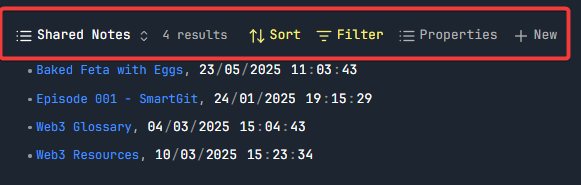
After
![[Vault Base.base|no-header]]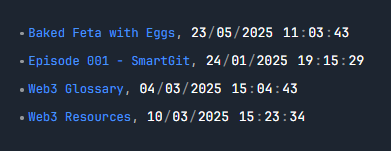
Code
.bases-embed[alt~="no-header"] {
    .bases-header {
    display: none;
    }
}
Source
- I found this on J. Faber’s Blog together with a pretty cool Bases script for showing notes created on the same day as your current note over the years. Basically like “this day in history” for photos on your phone.
- Obsidian Bases Made Simple - Advanced Tips
- See it in action: YouTube