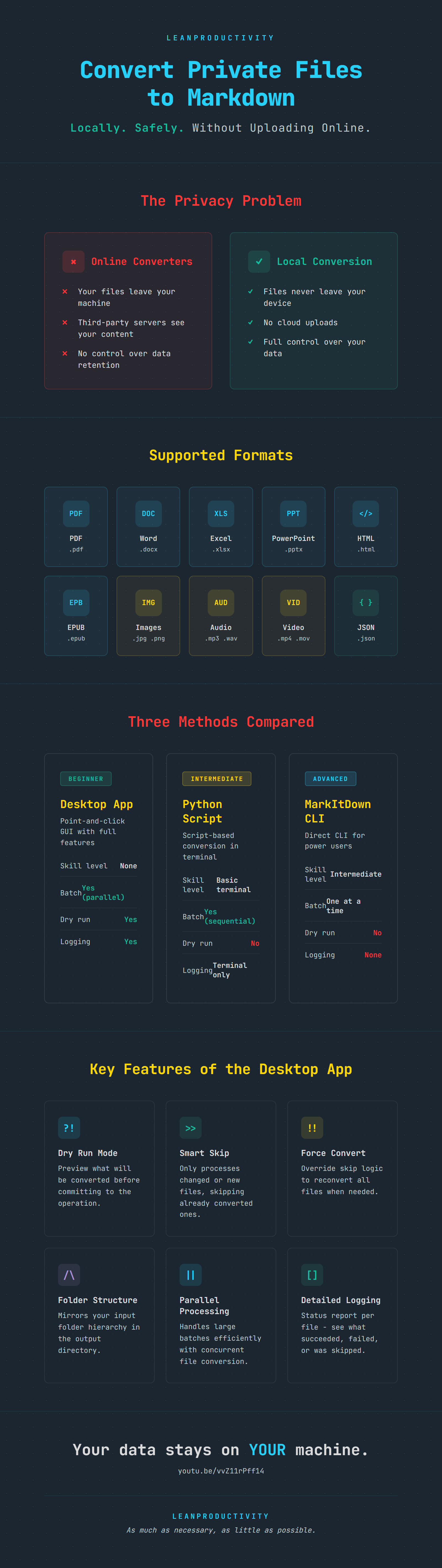
In a Nutshell
Resources
Tutorial: YouTube Download: FREE and paid Obsidian templates GitHub: MarkItDown by Microsoft Support: Discord Community
You have private files - contracts, research papers, internal docs - and you need them in Markdown. Most online converters require you to upload those files to a third-party server. That is a problem if your documents contain sensitive information.
This guide shows you three ways to convert PDFs, Word documents, HTML pages, EPUBs, and more into clean Markdown - all running locally on your machine. Your data never leaves your device. You get a desktop app for beginners, a Python script for batch processing, and the raw Microsoft MarkItDown CLI for full control.
Pick the method that matches your comfort level and start converting.
The Desktop App
Tutorial
The LeanProductivity MarkItDown Bulk Converter is the easiest option. Download it, install it, and use it like any other Windows program. No Python, no GitHub, no command line required.
One thing to note: the installer is not code-signed. You might get a warning from your browser or Windows SmartScreen when downloading or running it. Getting a certificate costs almost 250 Euro per year - not something a solo creator can justify. If that bothers you, skip ahead to the manual methods where you have full visibility into every step.
What the App Does
Once running, you get a straightforward interface:
- Input folder - point it to the folder containing your source files
- Output folder - where the converted Markdown files go
- File type selection - choose which formats to convert
The app supports a wide range of formats: Microsoft Word, Excel, PowerPoint, PDF, HTML, EPUB, images, audio, and video files. Check the GitHub repository documentation for the full list.
Key Features
- Dry run mode - simulates the conversion without creating files, so you can preview what will happen before committing
- Smart skip logic - only converts files that are new or have changed since the last run, based on timestamps
- Force convert - override the skip logic and process everything regardless of timestamps
- Folder structure preservation - if your input folder has sub-folders, the output mirrors that structure
- Logging - creates a detailed log file showing the status of every file (new, overwritten, skipped)
- Parallel processing - handles large batches efficiently
Conversion Quality
The converted Markdown preserves headings, paragraphs, and basic formatting. Tables come through but sometimes need manual cleanup. PDF formatting can be hit-or-miss depending on the source file’s structure. Even with these quirks, batch converting locally is still much faster and safer than doing it manually or through an online tool.
Microsoft MarkItDown (CLI)
For full control and transparency, you can use Microsoft’s MarkItDown project directly. This is the open-source foundation that powers the desktop app. It requires some setup but gives you complete visibility into what is happening on your machine.
Prerequisites
You need three things installed:
- Git - download from git-scm.com
- Python (latest version) - download from python.org
- Pip - usually installed automatically with Python
Check if they are installed by running these commands in a terminal:
git --version
python --version
pip --version
Setup Steps
Clone the repository:
git clone https://github.com/microsoft/markitdown.git
Enter the project folder and create a virtual environment:
cd markitdown
python -m venv .mid
Activate the virtual environment:
.mid\Scripts\activate
Install the required packages:
pip install -e .
Converting a Single File
Use the CLI to convert one file at a time:
markitdown input/demo-files/document.docx > output/document.md
The converted file appears in the specified location, ready to use in Obsidian or any other Markdown-based system.
The Python Batch Script
If you want the control of the CLI but need to convert multiple files at once, the batch script offers a middle ground. It is a stripped-down version of what powers the desktop app - command-line based, no graphical interface.
What It Includes
- Batch conversion of entire folders
- File type selection (enter one or multiple formats separated by commas)
- Folder structure preservation
- Conversion summary in the terminal (files converted, skipped, errors)
What It Does Not Include
Compared to the desktop app, the script lacks:
- Graphical interface
- Dry run mode
- Override warnings
- Log file generation
- Progress bar
- Parallel processing
If you need those features, use the desktop app instead.
Running the Script
With Python installed and the virtual environment active:
python convert_batch.py
The script prompts you for file types. Enter a single type like docx or multiple types separated by commas like docx, html, pdf. When finished, you get a summary showing how many files were converted, skipped, or had errors.
Comparison
| Feature | Desktop App | Python Script | MarkItDown CLI |
|---|---|---|---|
| Technical skill needed | None | Basic terminal | Intermediate |
| Batch conversion | Yes (parallel) | Yes (sequential) | One file at a time |
| Dry run | Yes | No | No |
| Logging | Detailed log file | Terminal output | None |
| Folder structure | Preserved | Preserved | Manual |
| Force overwrite | Yes | No | Manual |
| Customizable | No | Yes (edit Python) | Yes (full source) |
| Trust required | Unsigned installer | You run the code | You run the code |
Whether you are a no-code beginner, a curious power user, or comfortable with the command line - there is a method that fits. Choose the one that matches your workflow and let Markdown do the rest.
FAQ
Which file formats are supported?
The tool supports Microsoft Word, Excel, PowerPoint, PDF, HTML, EPUB, images, audio, and video files. The full list is maintained in the MarkItDown GitHub repository documentation.
Is the conversion quality perfect?
Not always. Headings, paragraphs, and basic formatting convert well. Tables sometimes need manual cleanup, and complex PDF layouts can produce messy output. Even so, it is still much faster than manual conversion.
Why does Windows show a security warning?
The desktop app installer is not code-signed. A signing certificate costs almost 250 Euro per year. The app is safe - if you prefer to verify that yourself, use the manual CLI or Python script methods instead.
Do I need Python for the desktop app?
No. The desktop app bundles everything it needs. Python is only required if you use the CLI or the batch script method.
Can I use this with Obsidian?
Yes. The output is standard Markdown that works in Obsidian, any other Markdown editor, or any system that reads
.mdfiles.
Infographic