In a Nutshell
Resources
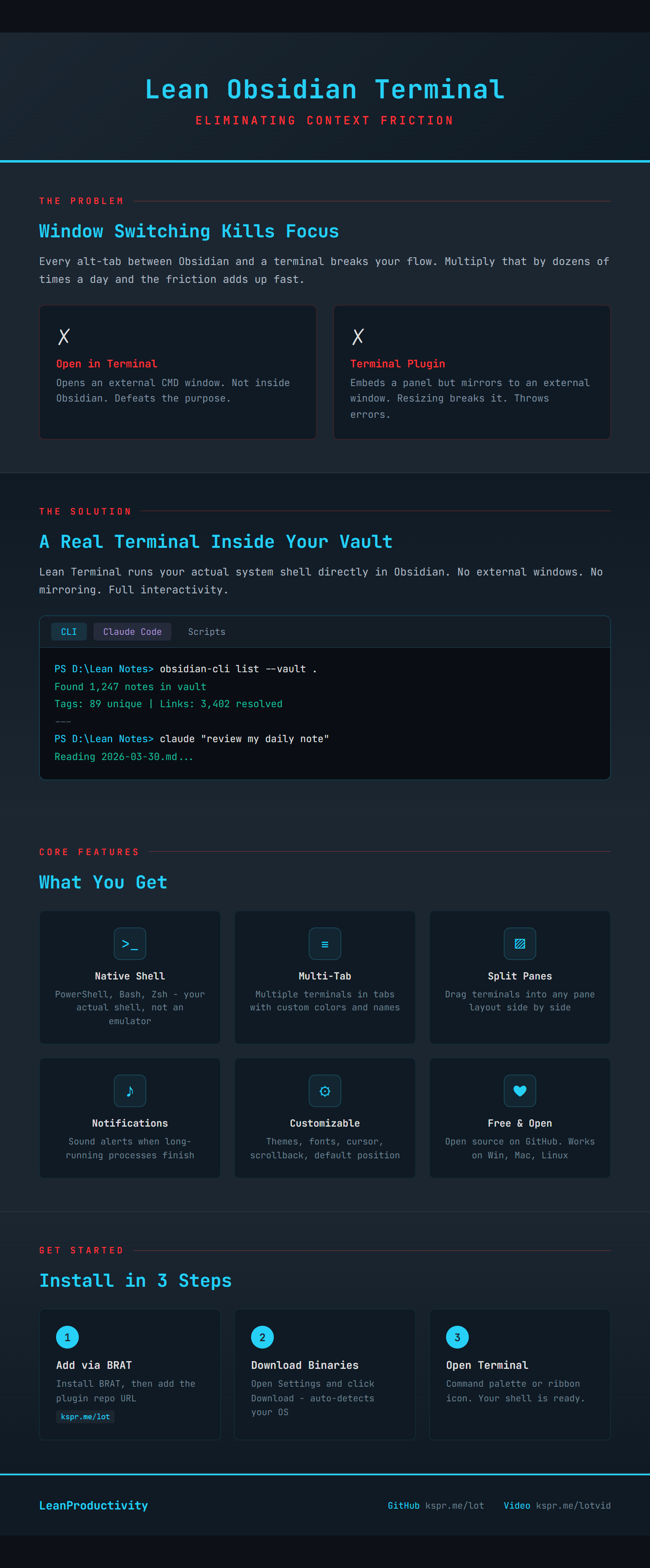
Lean Obsidian Terminal embeds a real terminal directly inside your Obsidian workspace. No external windows, no browser hacks - a proper pseudoterminal running your actual shell, right next to your notes.
If you are a developer, scripter, or power user who lives in Obsidian, you no longer need to alt-tab to a separate terminal. Run git commands, execute scripts, manage files - all without leaving your vault.
The Problem
You are writing notes. You need to run a quick git commit. You switch to your terminal. You lose your place. You switch back. Repeat that fifty times a day and the friction adds up.
Existing Obsidian terminal plugins either spawn external windows (defeating the purpose) or use unreliable workarounds that break across platforms. The core problem is that Obsidian’s Electron environment makes running native terminal processes tricky - most plugins give up and shell out to a separate window.
Lean Obsidian Terminal solves this by running a real PTY (pseudoterminal) in-process. Your shell runs inside Obsidian, not alongside it.
What It Does
This is not a JavaScript command emulator. Lean Obsidian Terminal spawns your actual system shell:
- Windows: PowerShell 7 (if available), Windows PowerShell, or cmd.exe
- macOS/Linux: Whatever your
$SHELLis set to
Every command you can run in a standalone terminal works here - interactive tools, ANSI color output, scrollback history, the lot. The terminal panel opens in the bottom or right pane of your Obsidian window and resizes automatically to fit your layout.
Features
Multiple Terminals
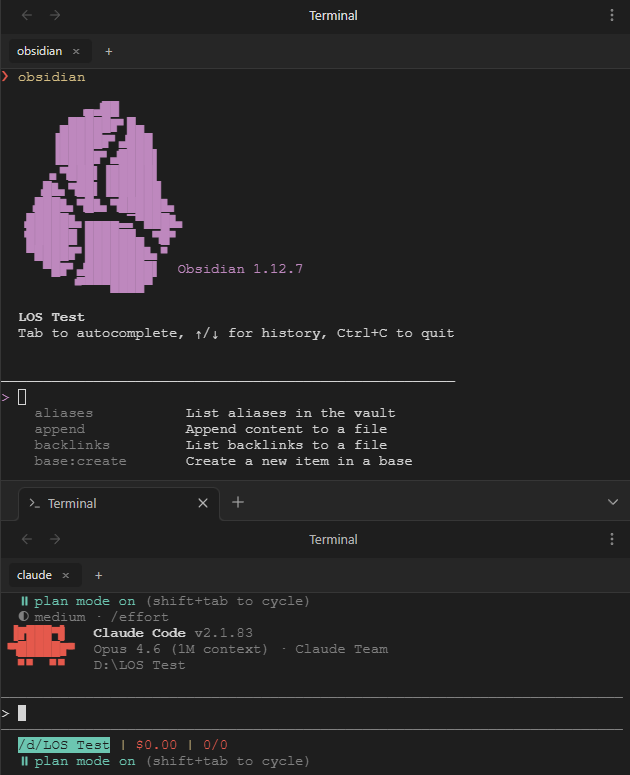
Multiple Tabs
Open as many terminal sessions as you need. Each tab runs an independent shell instance. Name them, close them, switch between them.
Manage tabs with full control: rename and color-code individual tabs from an editable palette, pin them to prevent accidental close, and drag to reorder. Use keyboard shortcuts to navigate - next/previous tab (with wraparound), jump directly to tabs 1-8, or jump to the last tab. Position the tab bar at the top, left, or right edge. Set a startup command that runs automatically on every new tab (e.g., claude to start Claude Code, npm run dev to launch your dev server). Tabs auto-close when the process exits.
Split Panes
Open terminals in separate panes of your Obsidian window. Open one terminal in a tab to the right, or split it into a new pane - run your build in one pane while tailing logs in another, without leaving a single Obsidian window.
Vault Integration
Connect your terminal directly to your vault. Use the command palette to open a terminal in your current file’s directory. Right-click any file or folder in the file explorer and select “Open terminal here”. Use the URI handler obsidian://lean-terminal?cwd=<path> to link directly to any directory from notes, scripts, or external tools. Drag files from Obsidian or your file explorer into the terminal to paste absolute paths (spaces are automatically quoted). Type [[ to autocomplete vault wiki-links and insert file paths as wiki-links, relative paths, or absolute paths.
Search
Find text directly in the terminal with Ctrl+Alt+F. The search overlay shows a match counter, lets you toggle case sensitivity, and highlights all matches. Copy on select: text is automatically copied to your clipboard whenever you select it in the terminal.
Session Persistence
Your terminal sessions survive Obsidian restarts. Tab names, colors, working directories, and scrollback history are all restored. The rescue buffer keeps the last 10 closed tabs - restore any of them from the command palette if you accidentally close a terminal. Claude Code integration: the plugin scans ~/.claude/projects/ and generates a vault registry note with Resume links for all your active Claude Code sessions.
Full Interactive Shell
This is your real shell. git rebase -i works. npm install with its progress bars works. Python scripts with input prompts work. If it runs in a terminal, it runs here.
ANSI Color Output
Syntax highlighting, colored diffs, status indicators - all rendered correctly. The terminal uses xterm.js for accurate color and formatting support.
Auto-Resize
The terminal viewport adapts when you resize panes or toggle sidebars. No manual adjustment needed.
Installation
Getting started takes about two minutes.
Step 1: Install the Plugin
Install Lean Obsidian Terminal through BRAT (or Community Plugins once accepted). The initial install is lightweight - just the plugin JavaScript, no native binaries yet.
Binary Download
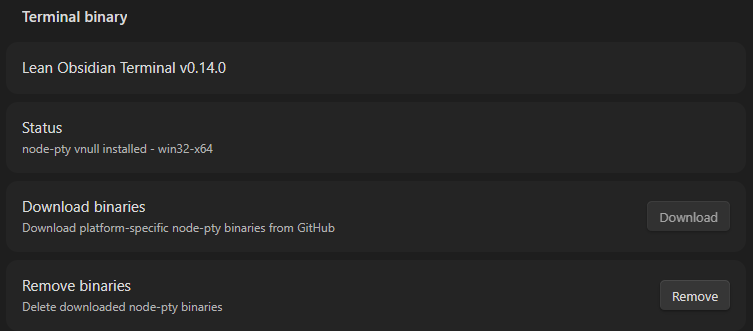
Step 2: Download the Binaries
Open Settings > Terminal > Binary Management and click Download. The plugin detects your platform (Windows, macOS Intel, macOS Apple Silicon, or Linux) and downloads the correct binary package automatically.
Every download is verified with a SHA256 checksum. No npm install, no build tools, no command line required.
Step 3: Open a Terminal
Click the terminal icon in the ribbon or use the command palette. Your shell is ready.
Customize
The settings dialog is organized into seven sections - everything you need to customize behavior, appearance, and integration.
Behavior
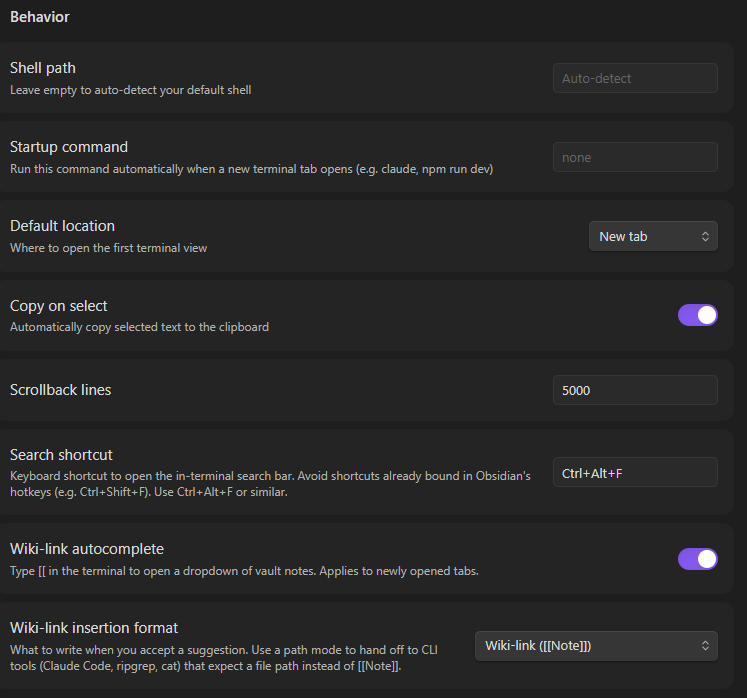
Behavior
- Shell path
- Point it at any shell executable or let it auto-detect
- Startup command
- Pre-fill a command that runs automatically on every new terminal tab (e.g.,
npm run dev,claude)
- Pre-fill a command that runs automatically on every new terminal tab (e.g.,
- Default location
- Choose whether new terminals open in the bottom or right pane
- Copy on select
- Automatically copy text to clipboard when selected
- Scrollback lines
- Configure how many lines of history the terminal keeps (default 5000)
- Search shortcut
- Customize the keyboard shortcut to open search (default Ctrl+Alt+F)
- Wiki-link autocomplete
- Toggle autocomplete for vault wiki-links via
[[
- Toggle autocomplete for vault wiki-links via
- Wiki-link insertion format
- Choose how to insert paths: as wiki-links, relative paths, or absolute paths
Appearance
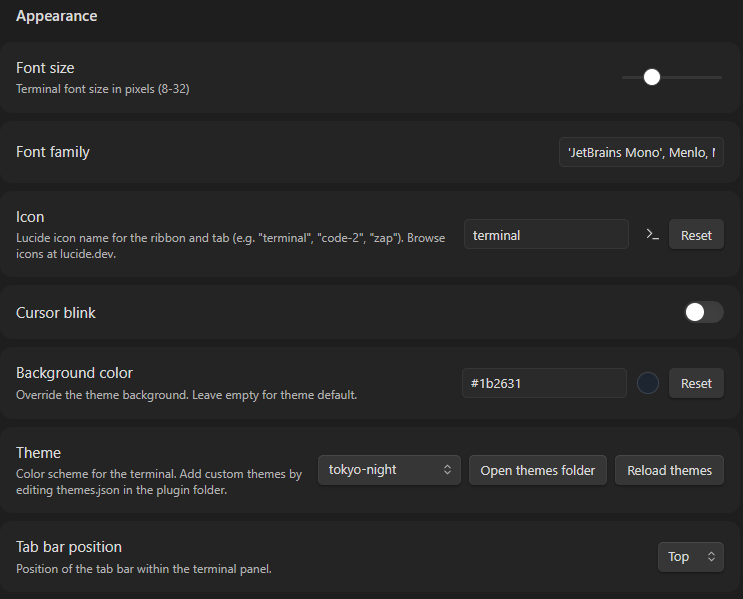
Appearance
- Font size
- Set the terminal font size in pixels (12 - 32)
- Font family
- Choose from system fonts or specify a custom font
- Icon
- Customize the ribbon button and tab bar icon with any Lucide icon name
- Cursor blink
- Toggle cursor blink animation on or off
- Background color
- Override the theme background with a custom color to match your vault
- Theme
- 12 built-in themes including Dracula, Nord, Gruvbox, Tokyo Night, and Catppuccin Mocha
- Custom themes
- Add your own color scheme via a
themes.jsonfile in the plugin folder
- Add your own color scheme via a
- System theme
- Automatically follows Obsidian’s dark/light setting
- Tab bar position
- Position the tab bar at the top, left, or right edge of the terminal panel
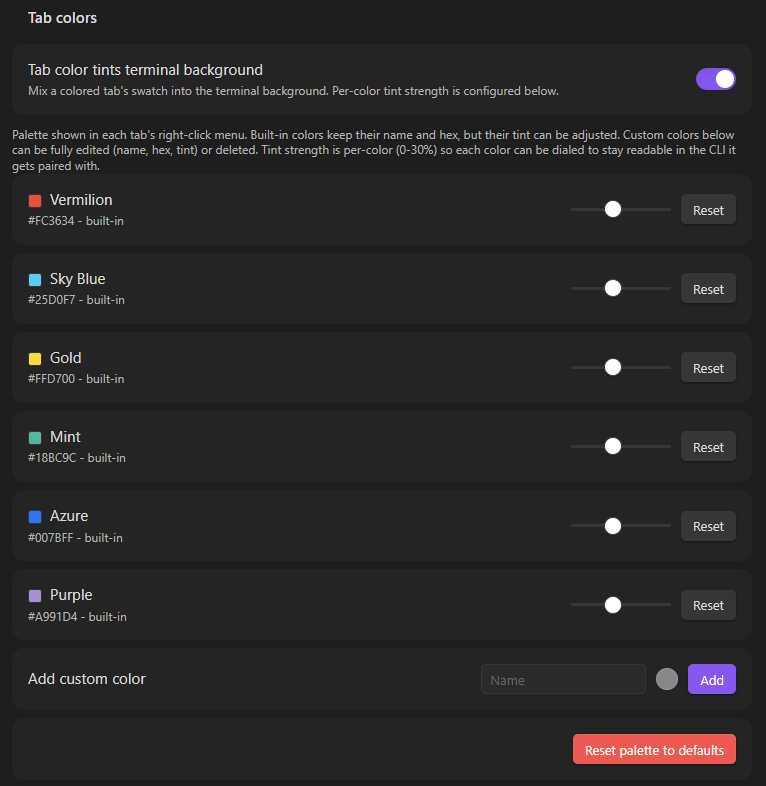
- Tab colors
- Color-code individual tabs from an editable palette (Vermillion, Sky Blue, Gold, Mint, Azure, Purple)
- Add custom color
- Create additional tab colors beyond the default palette
Notifications
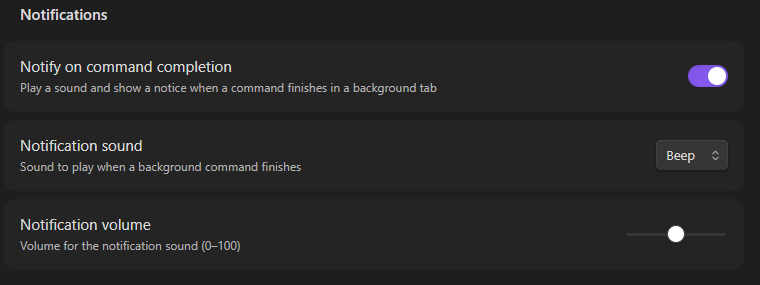
Notifications
- Notify on command completion - Get a sound alert when a command finishes in a background tab
- Notification sound - Choose from four sounds (beep, chime, ping, pop)
- Notification volume - Adjust volume from 0 to 100
Session Persistence
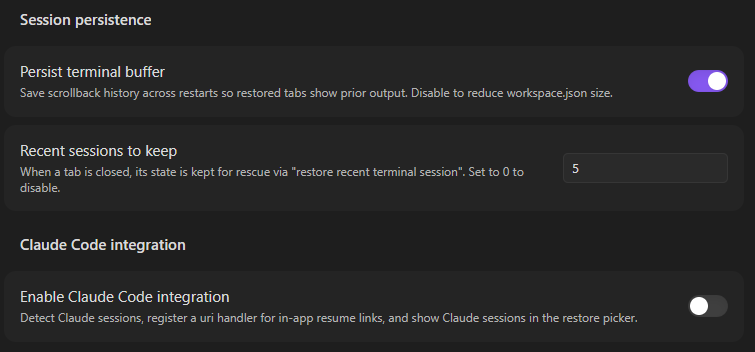
Session Persistence
- Persist terminal buffer - Restore terminal content and tab state after Obsidian restarts
- Recent sessions to keep - Control how many recently closed tabs are available in the rescue buffer
Claude Code Integration
- Enable Claude Code Integration - Automatically generate a registry note with Resume links for active Claude Code projects
Use Cases
Developer Workflow
Keep your project notes open in one pane and run git commit, npm run build, or python manage.py in the terminal. No window switching, no lost context.
Vault Maintenance Scripts
If you run Obsidian CLI with Python or Bash scripts against your vault (metadata cleanup, tag standardization, link suggestions), the embedded terminal is the natural place to execute them - you can see the script output while looking at the notes it modifies.
Learning and Documentation
Working through a tutorial? Run the code snippets in the terminal while reading your notes side-by-side. Copy output directly into your notes without switching windows.
System Administration
Network diagnostics, config file edits, process monitoring - all accessible from within your knowledge base.
Under the Hood
For the technically curious: Lean Obsidian Terminal uses xterm.js v5.5 for rendering and node-pty v1.1.0 for shell process management.
The hardest problem was Windows support. Obsidian’s Electron renderer blocks Worker threads, which the standard ConPTY backend needs. The solution: force the winpty backend and patch the connection layer to use inline socket piping instead of Workers. The result is a stable, native terminal on all three platforms, including Windows ARM64 and Snapdragon devices.
Binaries are distributed as platform-specific packages downloaded at runtime - keeping the plugin install small and avoiding the need for build tools on your machine. Zsh users get .zshenv and .zprofile loaded automatically via a ZDOTDIR override, so startup files work exactly as they do in a standalone terminal.
FAQ
Does this work on mobile?
No. Lean Obsidian Terminal is desktop-only. Mobile operating systems do not support pseudoterminal processes.
Which shells are supported?
On Windows: PowerShell 7, Windows PowerShell, and cmd.exe. On macOS and Linux: whatever your
$SHELLenvironment variable points to.
Do I need Node.js or npm installed?
No. The plugin downloads pre-built binaries directly. You do not need any development tools on your machine.
Is it safe?
The plugin went through a security audit before public distribution. Binary downloads are verified with SHA256 checksums, and the code is open source for inspection.
Can I change the default shell?
Yes. Go to Settings > Terminal and set any shell executable path you prefer.
Does it work with Zsh?
Yes. On macOS and Linux, Lean Obsidian Terminal loads your
.zshenvand.zprofilevia a ZDOTDIR override, so your Zsh startup files work exactly as they do in a standalone terminal.
Infographic