In a Nutshell
Resources
Tutorial: YouTube Download: FREE and paid Obsidian templates Support: Discord Community
One bad sync, one broken phone, one accidental deletion - and your notes could be gone. The good news: protecting your Obsidian vault is straightforward once you know the system.
This guide walks you through the 3-2-1 backup strategy - the gold standard for keeping files safe - and shows you exactly how to set up both sync and backup for your vault. You will learn how Obsidian Sync works, how to build a layered backup system with free tools like FreeFileSync and the Local Backup plugin, and how to automate the whole thing so you never have to think about it.
If you prefer not to pay for Obsidian Sync, this post also covers four free sync alternatives: OneDrive + OneSync, Syncthing, the Git community plugin, and the Fit community plugin. By the end, you will have a step-by-step plan you can copy so that one glitch will not cost you your notes.
The 3-2-1 Backup Strategy
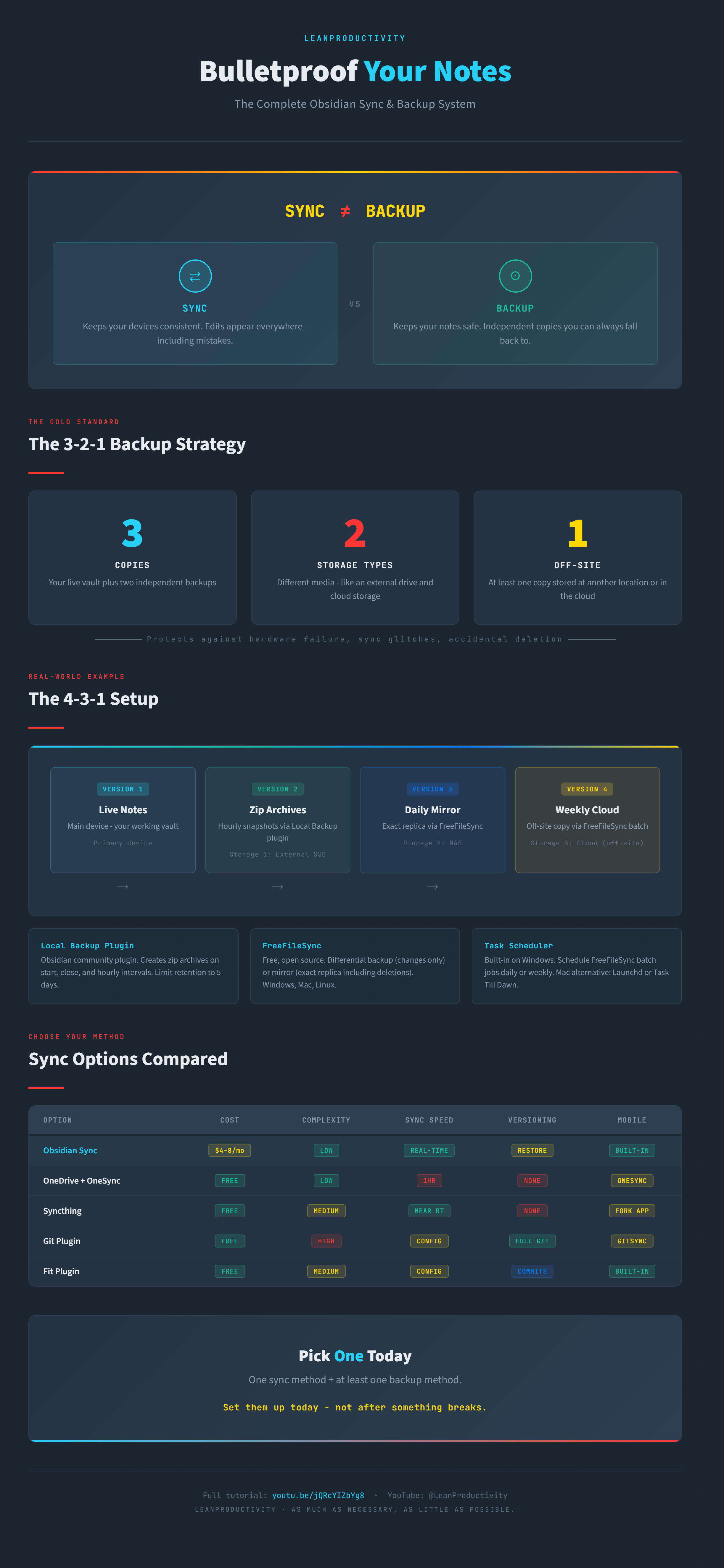
Before jumping into tools, it helps to understand what you are actually trying to achieve. You want to protect your notes from loss, corruption, or sync mistakes. The simplest and most reliable structure for this is the 3-2-1 backup strategy.
Here is what it means:
- 3 copies of your notes - your main live version plus two backups
- 2 different storage types - like an external drive and the cloud
- 1 copy off-site - at another physical location or in cloud storage
This approach protects you from hardware failures, sync glitches, accidental deletions, and basically anything that can happen on a single device.
Sync Is Not Backup
There is an important distinction to understand. Sync keeps your devices consistent. Backup keeps your notes safe. They are not the same thing.
If you make a bad edit or a file gets corrupted, sync will copy that mistake to every device. That is exactly what it is designed to do. Backup gives you independent copies you can fall back to when something goes wrong.
The setup you should aim for: one live vault that syncs across all your devices, plus a background backup system that creates independent copies.
How I Sync My Vault
Tutorial
When first starting with Obsidian, a simple free workaround seemed obvious: store the vault on OneDrive, let it sync to the phone, use the OneSync app to create a local copy, then open that folder as a vault in Obsidian Mobile. It worked - mostly.
Eventually, switching to Obsidian Sync was the right call. Starting at 8 for more storage), it syncs notes across four devices fast and reliably without a single issue. It removes all friction from the process.
Key Obsidian Sync Settings
- Conflict resolution - You can let Obsidian merge files automatically or create conflict copies so nothing is overwritten accidentally. Creating conflict copies means you need to resolve them manually, but nothing gets lost.
- Vault configuration sync - This keeps settings, plugins, and appearance consistent across all devices. No manual tweaking needed on each device.
Setting Up Your Backup System
You do not need an expensive or complicated solution. Here is what you need:
- Your main device (PC or Mac)
- An external storage device - a USB stick, external SSD, or NAS
- An off-site location - any cloud storage you already use (OneDrive, Google Drive, iCloud)
- Free backup software - FreeFileSync (Windows, Mac, Linux, open source)
- A scheduling tool - Windows Task Scheduler or Mac equivalents
Layer 1: Local Backup Plugin
The Obsidian Community plugin Local Backup creates zip file backups of your vault automatically. Install it via Settings > Community Plugins.
Key settings:
- Backup triggers - every time you start and close Obsidian
- Retention - limit to five days to manage disk space
- Output path - point to your external SSD or USB stick
- Interval backups - enable hourly snapshots so you never lose more than one hour of work in the worst case
Layer 2: FreeFileSync Differential Backup
FreeFileSync copies only new and changed files to your backup destination. This is much faster and uses much less space than backing up the entire vault every time.
You can set up multiple jobs:
- A differential backup job that copies only changes
- A mirror job that replicates the vault exactly, including deletions
The 4-3-1 Upgrade
The basic 3-2-1 can be extended into a 4-3-1 structure for even more protection:
| Copy | What | Storage |
|---|---|---|
| 1 | Live notes | Main device |
| 2 | Hourly zip archives | External SSD (storage 1) |
| 3 | Daily mirror | NAS (storage 2) |
| 4 | Weekly update | Cloud (storage 3, off-site) |
You absolutely do not need four versions - three are enough for most people. But this shows how easy it is to build a layered system once the foundation is in place.
Automating Your Backups
The best backup system is one you do not have to think about. Without automation, you will forget. Everyone forgets.
FreeFileSync Batch Jobs
In FreeFileSync, save any job as a standalone batch file. You can combine multiple tasks into a single scheduled action:
- A weekly backup batch that includes all your backup jobs
- A daily mirror batch for your mirror synchronization
Windows Task Scheduler
Windows comes with a built-in tool called Task Scheduler that can run any program at specific times.
Example setup:
- Daily mirror job - runs every day at 9:30 AM, starts FreeFileSync with the daily batch file as an argument
- Weekly backup job - runs every Monday, executes the weekly batch file
Mac Alternatives
The built-in equivalent on Mac is Launchd. It is more technical to configure, so many users prefer a graphical tool like Task Till Dawn or Launch Control to manage scheduled tasks.
Free Sync Alternatives
If you prefer not to use Obsidian Sync, you still have several free ways to synchronize your vault. All of them work, but each comes with some setup and limitations. The options fall into three categories:
- Cloud storage services - OneDrive, Google Drive, iCloud
- Peer-to-peer tools - Syncthing
- Git-based solutions - using GitHub
OneDrive + OneSync
Place your vault inside OneDrive, install the OneDrive app on your phone, then use the OneSync app to create a local copy that Obsidian Mobile can access. Obsidian Mobile cannot open folders inside cloud storage directly - it only works with local folders.
Setup steps:
- Create a vault directly inside your OneDrive folder on the PC
- Right-click the folder and choose “Always keep on this device”
- On the phone, log into OneSync with your Microsoft account
- Create a new folder pair (cloud folder to local folder) with two-way sync
- Open the local folder as a vault in Obsidian Mobile
Limitations:
- The free version has a 20 MB upload limit
- The shortest sync interval is one hour (no real-time sync)
- You can trigger manual sync at any time
- Requires granting a third-party app access to your cloud storage
Syncthing
Syncthing is free, open source, and works on all major platforms. Once set up, it is very reliable and noticeably faster than the OneDrive approach.
Setup steps:
- Install Syncthing on your PC and the Syncthing Fork app on your phone
- Create a vault in a location that is not on any cloud storage service
- In Syncthing, add your phone as a remote device and confirm the connection
- Add the vault folder and share it with the phone
- Accept the sharing request on the phone and select a local folder
- Open the local folder as a vault in Obsidian Mobile
Syncthing syncs changes within moments - you can watch edits appear on the other device almost in real time.
Git Plugin
The Git community plugin connects your vault to a GitHub repository. It gives you sync across devices plus full version history of every file.
Setup steps:
- Install Git on your device from github.com
- Create a new vault and install the Git community plugin
- Create a private repository on GitHub with a README file
- Generate a Personal Access Token (Settings > Developer settings > Personal access tokens > Classic)
- Use the command “Git: Clone an existing remote repo” with the URL pattern:
https://YOUR_TOKEN@github.com/USERNAME/REPO.git - Move cloned content to the vault root folder (including hidden files)
- Set an auto-commit interval and enable “pull on startup”
Mobile sync requires the GitSync app, which syncs your phone’s local folder with GitHub on a 15-minute minimum interval.
Bonus: You get full version control with commit history and file comparison - you can go back in time for every single note.
Fit Plugin
The Fit community plugin is a simplified version of Git. It handles authentication, syncing, and file history without the complexity of a full Git setup.
Setup steps:
- Create a new vault and install the Fit community plugin
- Create a private GitHub repository with a README
- Generate a Personal Access Token and authenticate in the plugin settings
- Select the repository and branch
- Set a device name and auto-check interval
- Run “Fit: Fit Sync” from the command palette
On mobile, install Fit the same way, use the same token and repository, and run the sync command. Both devices stay aligned.
Trade-off: Fit is much simpler than Git but has weaker conflict handling. If you edit the same note on multiple devices before a sync, you need to resolve the conflict manually.
Comparison Overview
| Option | Cost | Complexity | Real-time Sync | Versioning | Mobile Support |
|---|---|---|---|---|---|
| Obsidian Sync | $4-8/mo | Low | Yes | Limited (restore) | Built-in |
| OneDrive + OneSync | Free | Low | No (1hr interval) | No | OneSync app |
| Syncthing | Free | Medium | Near real-time | No | Syncthing Fork |
| Git Plugin | Free | High | No (configurable) | Full Git history | GitSync app |
| Fit Plugin | Free | Medium | No (configurable) | Commit history | Built-in |
If you only remember one thing: pick one sync method and at least one backup method, and set them up today - not after something breaks.
FAQ
Do I need both sync and backup?
Yes. Sync keeps your devices aligned but will replicate mistakes everywhere. Backup gives you independent copies to fall back to. They serve different purposes and work best together.
Is Obsidian Sync worth the cost?
If you work across multiple devices and value reliability, yes. It removes all the friction and setup complexity. The free alternatives all work, but they require more configuration and come with limitations like slower sync intervals.
Can I use OneDrive or Google Drive as my only backup?
Cloud storage alone is not a proper backup because sync and backup are different things. If you delete a file on your device, the cloud copy gets deleted too. Pair cloud storage with a separate backup tool like FreeFileSync or the Local Backup plugin.
What happens if I get a sync conflict?
With Obsidian Sync, you can set it to create conflict copies so nothing is overwritten. With the free alternatives, conflict handling varies - Syncthing handles it well, while Fit requires manual resolution. The Git plugin gives you full version control to compare and merge changes.
Do I need to know Git to use the Git or Fit plugins?
Not really. Once set up, both plugins work in the background. The Fit plugin is especially beginner-friendly. You never need to open a terminal or type Git commands - everything happens through Obsidian.
Infographic