In a Nutshell
Related
Obsidian Sync handles your notes, but getting settings and plugins consistent across devices is a different problem. There is no built-in one-way sync for the .obsidian folder - but you can fake it.
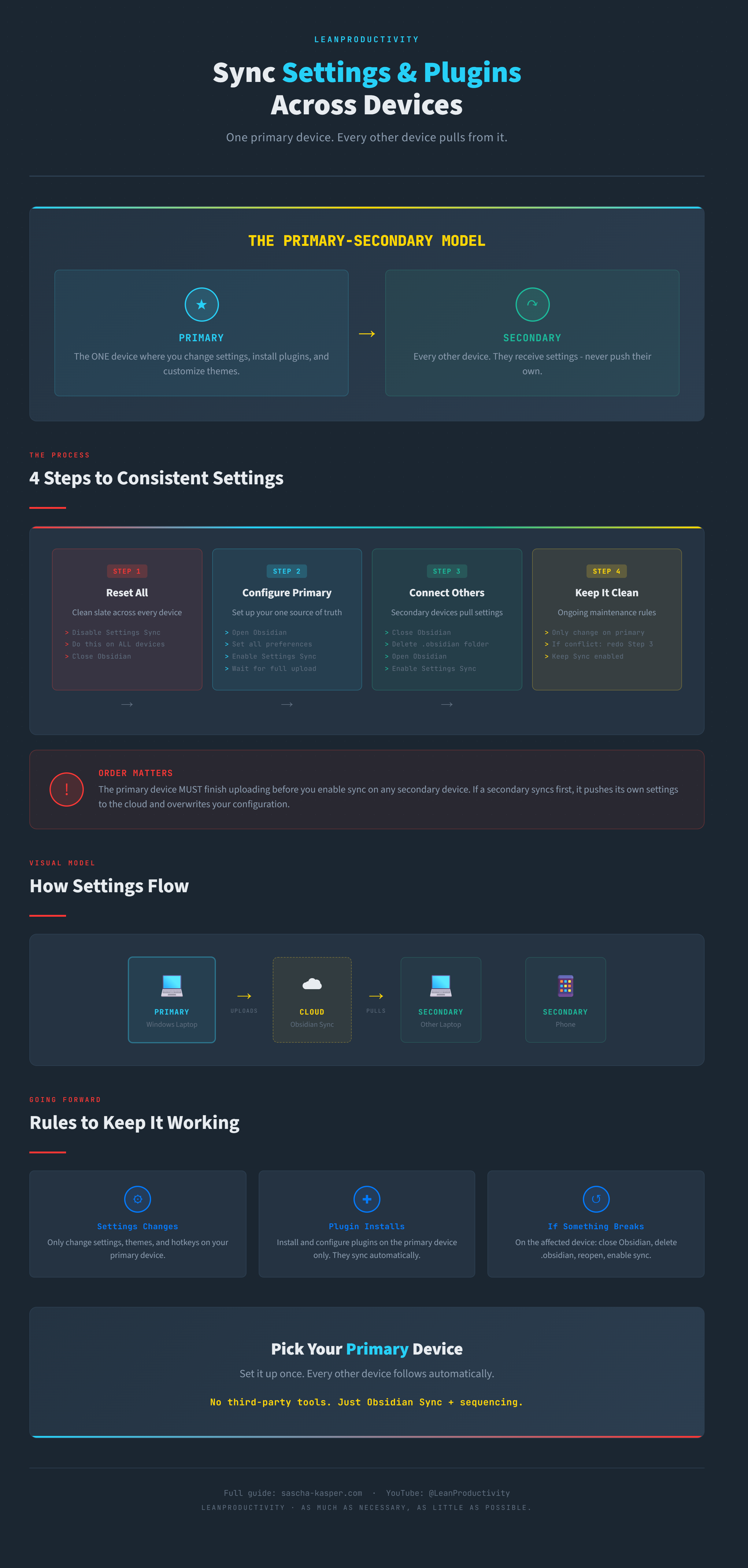
The trick is sequencing. You pick one device as your primary, let it upload its settings first, then have every other device pull from it. The result: identical plugins, hotkeys, themes, and appearance settings everywhere - without conflicts.
How It Works
You designate one device as the single source of truth for settings. Secondary devices never push their own configuration - they only receive.
Obsidian Sync does not have a “one-way” toggle. But if you control which device uploads first, secondary devices will always pull the primary’s settings instead of overwriting them with their own.
Step-by-Step Guide
Step 1: Reset All Devices
On EVERY device:
- Open Obsidian
- Disable Settings Sync completely
- Close Obsidian
This gives you a clean starting point with no conflicting settings in the cloud.
Step 2: Configure Your Primary Device
On your primary device (the one where you do most of your configuration):
- Open Obsidian
- Set up your settings exactly how you want them - plugins, hotkeys, themes, appearance, everything
- Enable Settings Sync
- Wait for the upload to finish completely
Order Matters
Do NOT touch your other devices until the primary has finished uploading. If a secondary device enables sync before the primary is done, it may push its own settings to the cloud and overwrite your work.
Step 3: Connect Secondary Devices
On each secondary device (other laptops, phone, tablet):
- Make sure Obsidian is closed
- Delete the
.obsidianfolder from your vault - this removes all local settings - Open Obsidian
- Enable Settings Sync
- The device downloads the primary’s settings automatically
Step 4: Keep It Consistent
From now on:
- Only change settings on your primary device
- If a secondary device accidentally changes something, repeat Step 3 for that device
- Keep Settings Sync enabled on all devices
FAQ
Does this work with Obsidian Sync only, or also with third-party sync tools?
This method is designed for Obsidian Sync specifically. If you use Syncthing, Git, or cloud storage for vault sync, settings sync works differently - and you may run into conflicts with the
.obsidianfolder. See the full sync and backup guide for alternatives.
What happens if I install a plugin on a secondary device?
It depends on your Settings Sync configuration. If plugin sync is enabled, the new plugin may upload to the cloud and appear on your primary device. To keep things clean, install plugins only on your primary device.
Do I lose my notes when I delete the .obsidian folder?
No. The
.obsidianfolder contains settings, plugins, themes, and appearance configuration - not your notes. Your notes stay exactly where they are.
Infographic