Get Started

- Sign in to Lean Obsidian Studio (LOS - Getting Started)
- Click the
Basesmodule selector
How to Use
Starter Cards
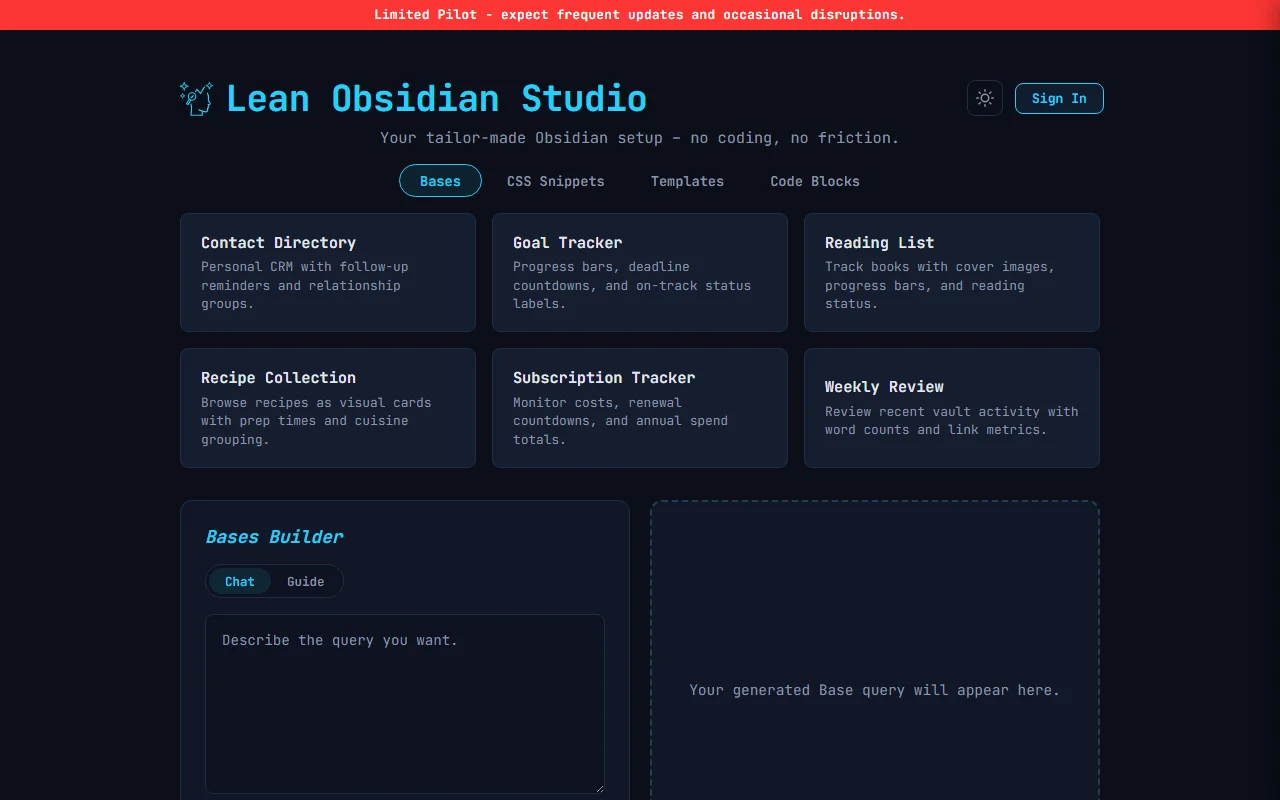
Six pre-built prompts that generate instantly (no AI call, no credits used).
Click any starter card and Generate to generate the output immediately.
After the first generation, edit your prompt and click Update to refine the output without starting over.
| Starter | What It Creates |
|---|---|
| Reading List | Book tracker with progress bars and rating |
| Recipe Collection | Recipe cards grouped by cuisine |
| Subscription Tracker | Active/inactive subscriptions with cost tracking |
| Weekly Review | Weekly note viewer with activity summary |
| Contact Directory | Contact cards with role and company fields |
| Goal Tracker | Goals overview with status and progress |
Chat
Type a plain-text description of the base you want. Example prompts:
- “Show all notes tagged project as cards grouped by status”
- “List books in my Reading folder sorted by rating, with a progress bar formula”
- “Track habits with checkboxes and a weekly streak counter”
- “Show all meetings from the past 7 days sorted by date”
After the first generation, edit your prompt and click Update to refine the output without starting over.
Guide (Wizard)
A five-step flow that builds your base interactively. Click the Guide toggle next to Chat to switch to wizard mode. Each step has a progress bar at the top showing where you are. Optional steps can be skipped.
Codeblock
```base [paste output here] ```
The wizard generates the final .base file at the end.
You can download the .base file or copy the output and paste it into a markdown file.
Don’t forget to put it into a code block.
Step 1 - Source
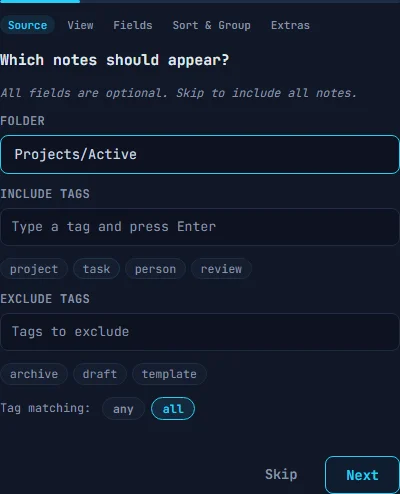
Choose which notes should appear in your base. All fields are optional - skip this step to include all notes in your vault.
- Folder - limit to a specific folder path (e.g. Projects/Active)
- Include tags - only show notes with these tags. Click suggestions like
project,task,person,reviewor type your own - Exclude tags - hide notes with these tags. Suggestions:
archive,draft,template - Tag matching - “any” matches notes with at least one of the tags; “all” requires every tag to be present
Step 2 - View
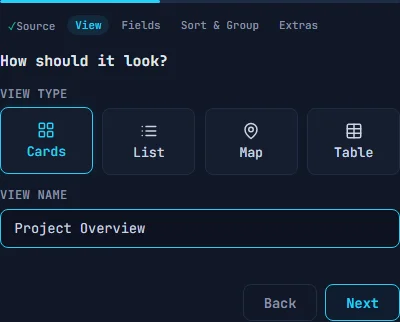
Pick how the base displays results. Both fields are required.
- View type - choose one of four layouts:
- Cards - visual cards with images and key fields
- List - compact rows
- Map - location-based view (requires a coordinates property)
- Table - spreadsheet-style columns
- View name - a label shown in the base header (e.g. “Project Overview”)
If you select Map, an additional coordinates field appears where you enter the property that holds location data.
Step 3 - Fields
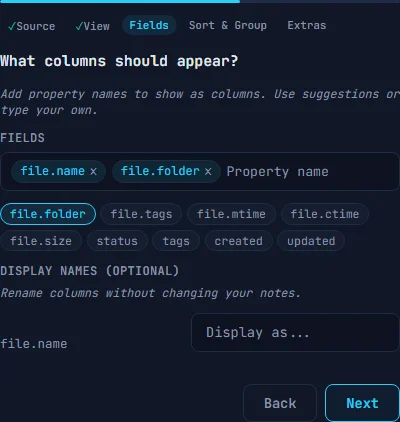
Select which properties appear as columns or card fields. At least one field is required.
- Type a field name or click suggestions:
file.name,file.folder,file.tags,file.mtime,file.ctime,status,tags,created,updated - Each added field gets a display name input where you can set a custom column header (leave blank to use the property name)
Step 4 - Sort & Group
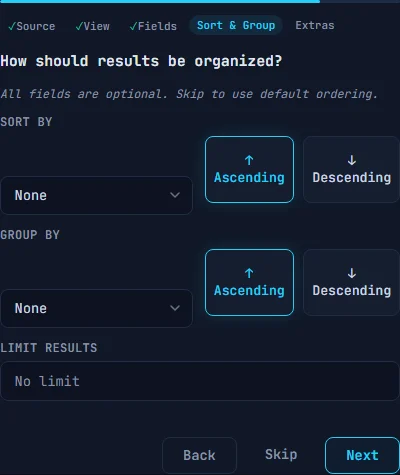
Set sort order, grouping, and result limits. All fields are optional.
- Sort by - choose a field from your selected fields, then pick ascending or descending
- Group by - group results under a shared value (e.g. group by status, group by folder)
- Limit - cap the number of results shown (leave blank for no limit)
Step 5 - Extras
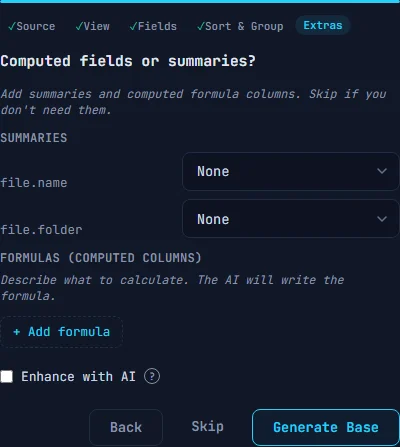
Add computed fields and summaries. Everything in this step is optional.
- Summaries - for each field, pick a summary function: Sum, Average, Min, Max, or Count. Summaries appear as a row below the data
- Formulas - define computed columns with a label and description. Click
+ Add formulato add more. Examples: “days_until” with “days until due date” - Enhance with AI - check this to have AI generate the actual formula expressions from your descriptions. Uses one AI credit. Without this, only the formula labels and descriptions are included
Result
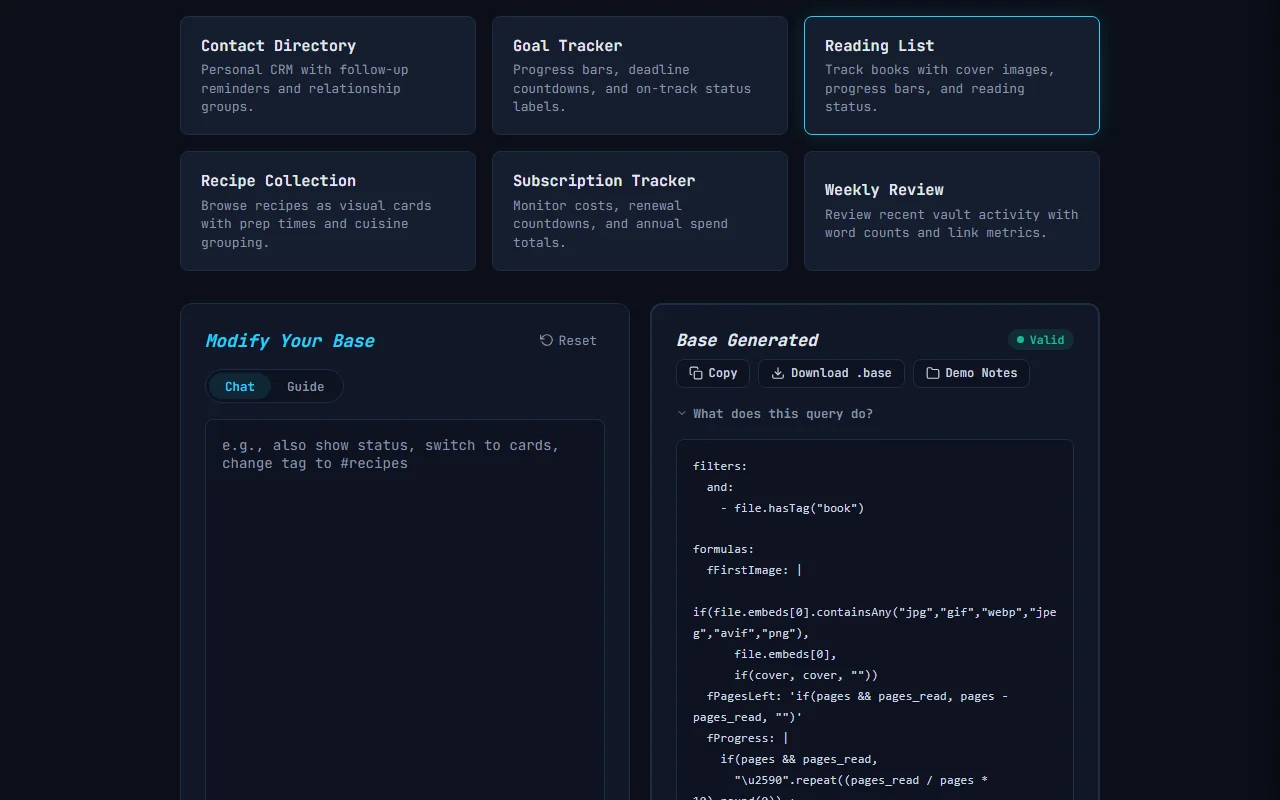
The output is a .base file (YAML) for Obsidian’s Bases core plugin. Each generation shows:
- A validation badge confirming the YAML is valid
- Copy and Download buttons
- A Demo Notes button that downloads a
.zipwith the base file plus sample markdown notes
To install the file in your vault, see LOS - Installing Generated Files.
Related
- BASES - Dynamic MoC - reusable base that adapts to any folder
- BASES - Visual Ratings - star rating display with formulas
- BASES - Relative Progress Bars - progress bar formulas for bases
- LOS - CSS Snippets Module - generate custom CSS for your vault
- LOS - Templates Module - generate templates for notes that feed your bases