Get Started

- Sign in to Lean Obsidian Studio (LOS - Getting Started)
- Click the
Templatesmodule selector - Toggle between
Core TemplatesandTemplaterat the top of the module
The toggle changes what syntax the output uses:
Core Templates- Obsidian’s built-in{{date}}and{{title}}variablesTemplater- community plugin with<% tp.* %>syntax for prompts, dates, file operations, and more
How to Use
Starter Cards
Multi column
Core Plugin
Templater Plugin
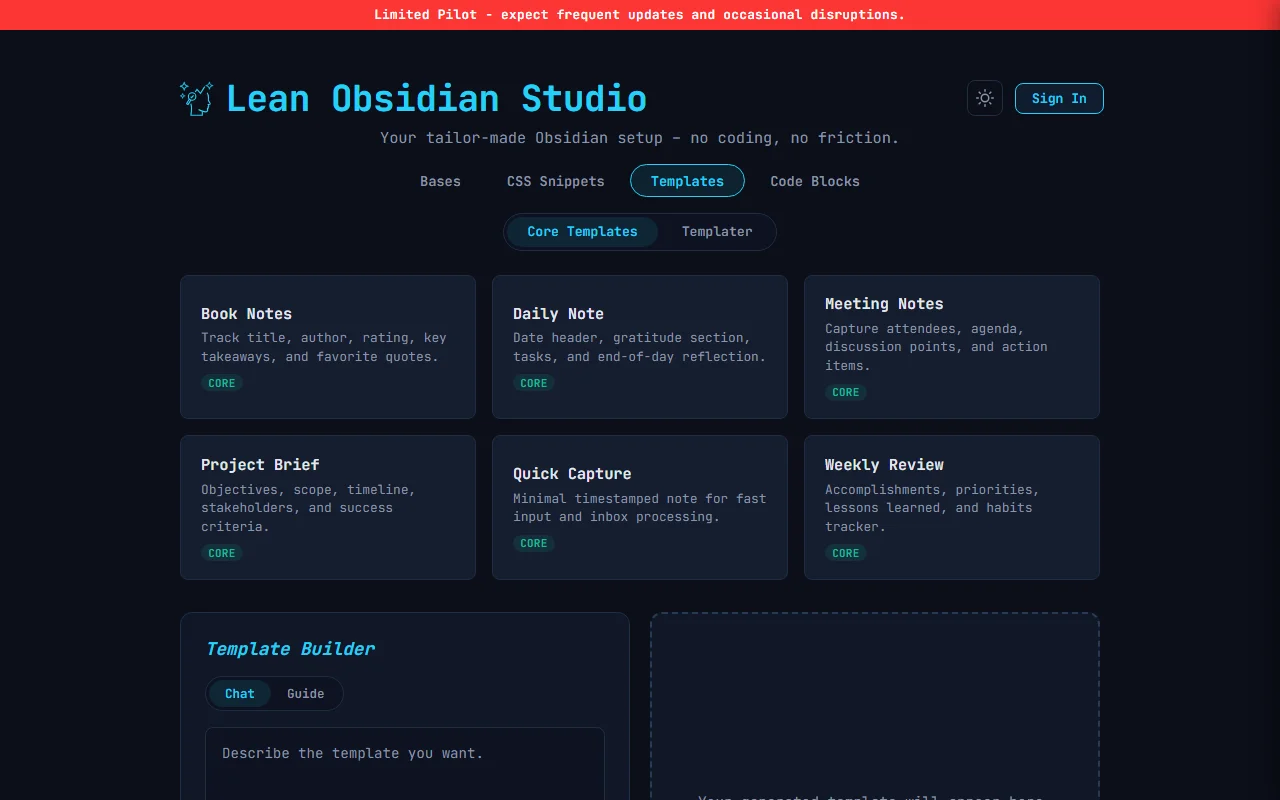
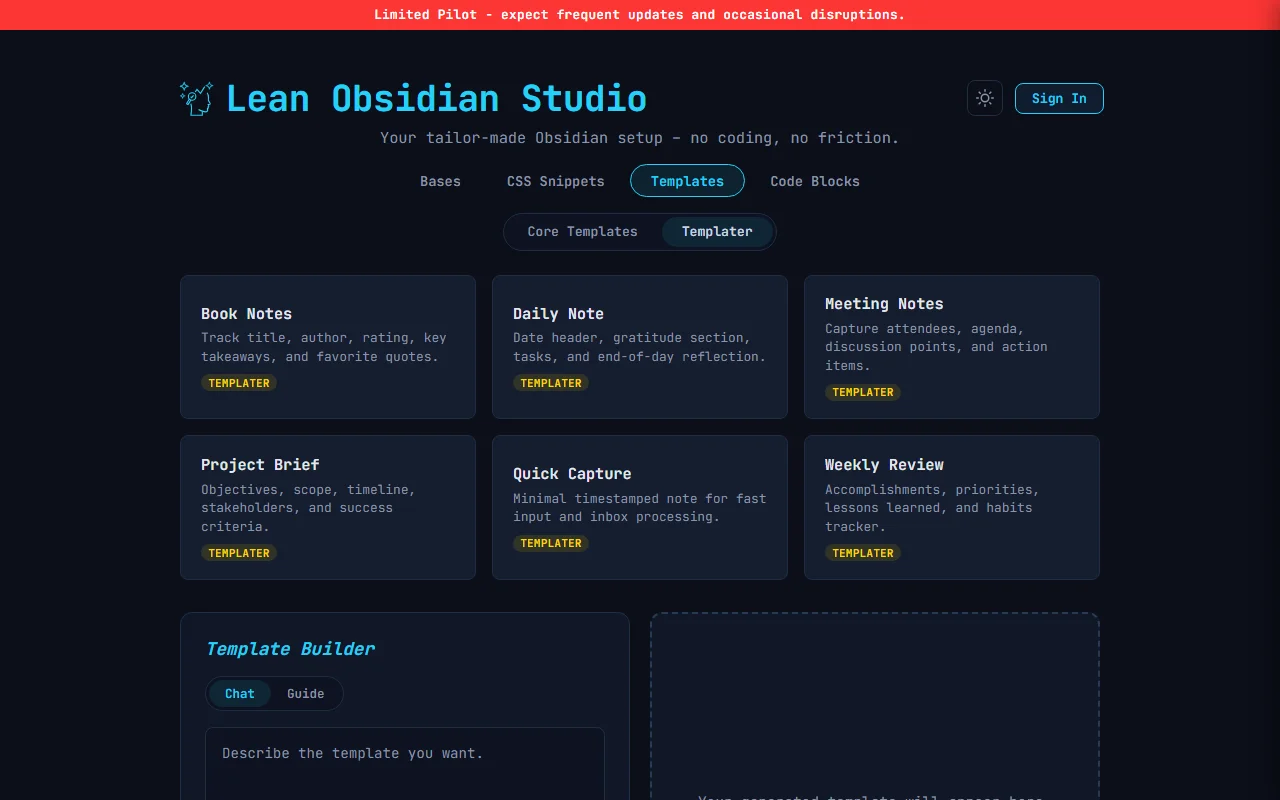
Six pre-built templates, each with both a Core and Templater variant (no AI call, no credits used).
Click any starter card and Generate to generate the output immediately.
After the first generation, edit your prompt and click Update to refine the output without starting over.
| Starter | What It Creates |
|---|---|
| Daily Note | Date header, gratitude, tasks, and reflection sections |
| Meeting Notes | Attendees, agenda, discussion, and action items |
| Project Brief | Goals, scope, timeline, and stakeholder sections |
| Weekly Review | Week summary, wins, challenges, and next week planning |
| Book Notes | Book metadata, key takeaways, quotes, and rating |
| Quick Capture | Minimal template for fast note entry with auto-date |
The active plugin toggle (Core or Templater) determines which variant you get.
Chat
Type a plain-text description of the template you want. Example prompts:
- “Meeting notes template with attendees, agenda, action items, and follow-up date”
- “Templater daily note with mood prompt and automatic date in the title”
- “Book review template with star rating property and favorite quotes section”
- “Project kickoff template with RACI matrix and milestones”
After the first generation, edit your prompt and click Update to refine the output without starting over.
Guide (Wizard)
A five-step flow that builds your template interactively. Click the Guide toggle next to Chat to switch to wizard mode. Each step has a progress bar at the top.
The wizard generates the final .md file at the end. You can download the .md file or copy the output.
Step 1 - Plugin
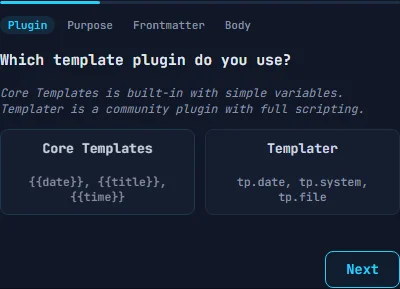
Choose your template plugin. This determines the syntax used in the generated template.
- Core Templates - Obsidian’s built-in template plugin. Uses
{{date}},{{title}}, and{{time}}variables - Templater - community plugin with richer syntax:
tp.date,tp.system,tp.filefor prompts, dates, file operations, and more
Step 2 - Purpose
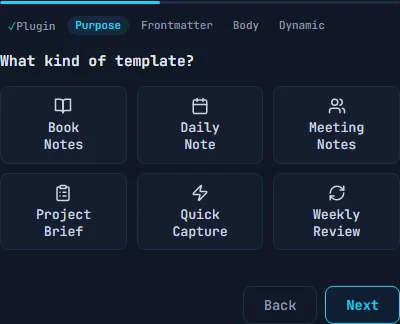
Pick the type of template you want to create. This determines the default structure and sections.
- Book Notes - track title, author, rating, key takeaways, and favorite quotes
- Daily Note - date header, gratitude, tasks, and end-of-day reflection
- Meeting Notes - attendees, agenda, discussion points, and action items
- Project Brief - objectives, scope, timeline, stakeholders, and success criteria
- Quick Capture - minimal timestamped note for fast input and inbox processing
- Weekly Review - accomplishments, priorities, lessons learned, and habits tracker
Step 3 - Frontmatter
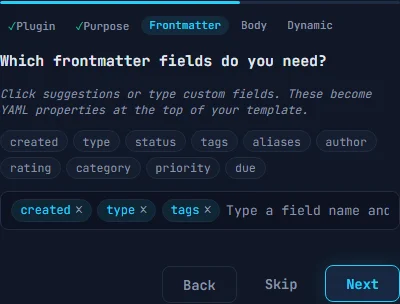
Choose which YAML frontmatter fields to include at the top of the template. Optional - skip if you do not need frontmatter.
- Click suggestion buttons to add common fields:
created,type,status,tags,aliases,author,rating,category,priority,due - Type a custom field name and press Enter to add it
- Default pre-filled fields:
created,type,tags
Step 4 - Body
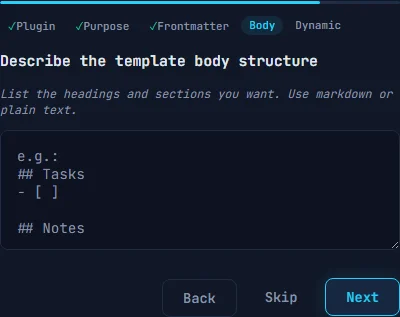
Describe the template body structure in free text. Optional - skip to use the default structure based on your selected purpose.
Example input:
## Tasks
- [ ]

## Notes

## Reflection
Step 5 - Dynamic (Templater only)
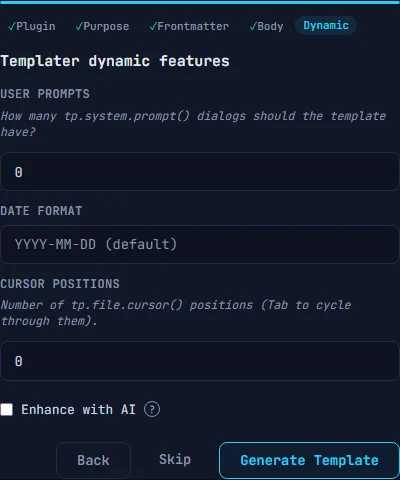
Configure Templater-specific dynamic features. This step is skipped when Core Templates is selected in Step 1.
- User Prompts - number of
tp.system.prompt()dialogs the template shows when applied (0-10). Each prompt asks the user for input at creation time - Date Format - custom date format string (default: YYYY-MM-DD). Used in
tp.date.now()calls - Cursor Positions - number of
tp.file.cursor()positions (0-10). After the template is applied, press Tab to cycle through cursor positions - Enhance with AI - check this to use one AI credit for richer dynamic logic in the generated template
Result
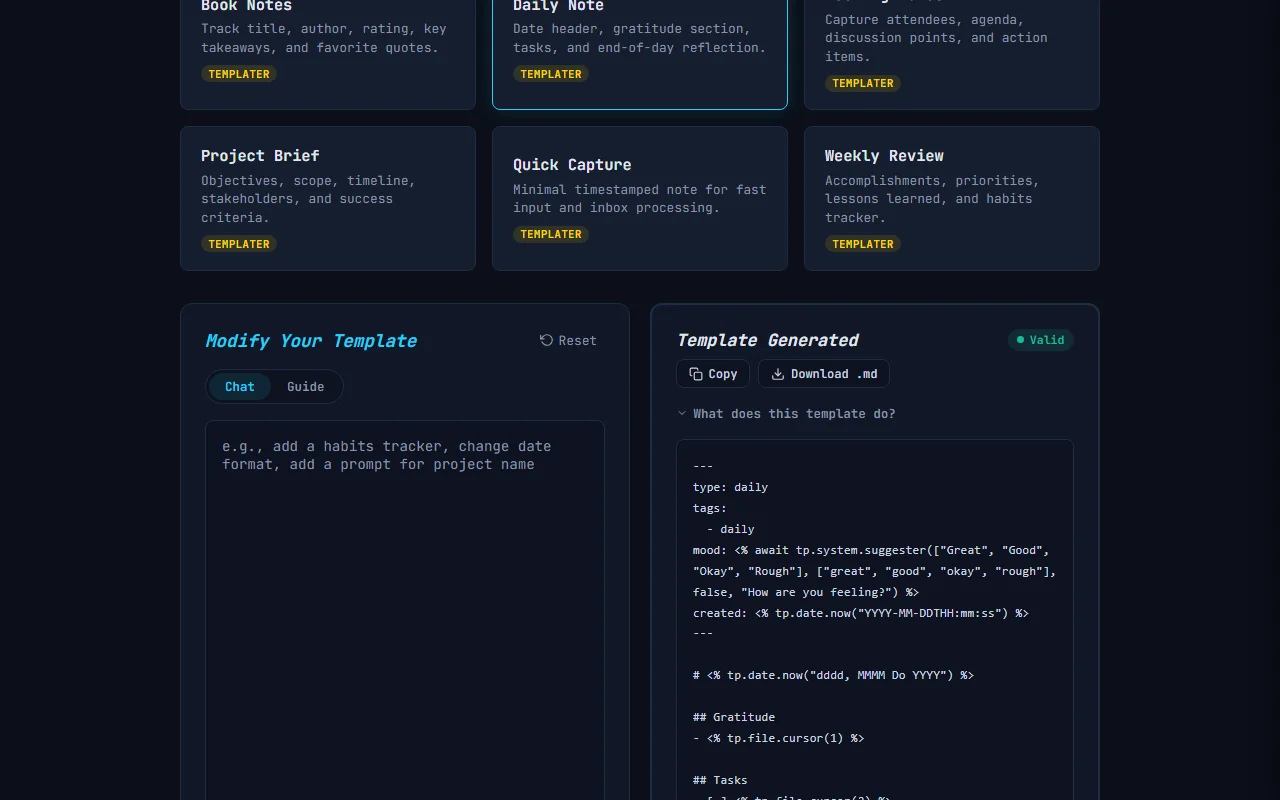
The output is an .md file with frontmatter and body content. Each generation shows:
- A validation badge confirming the template structure is valid
CopyandDownloadbuttons
To install the template in your vault, see LOS - Installing Generated Files.
Related
- LOS - Bases Module - generate database views for your templated notes
- LOS - CSS Snippets Module - style how your templates render